Payouts
How partner commissions move through Affitor's payout workflow.
Last updated Oct 17, 2026
When a commission clears its hold period, it is credited to the partner's balance. Once you pay the invoice that covers it, the partner can request a withdrawal, and Affitor approves and sends it. This page explains the lifecycle, payout methods, and your role as advertiser.
How payouts work
Partners can withdraw a commission only after you pay the invoice that covers it. An approved commission is added to the partner's balance right away, but it shows as Awaiting brand payment until that invoice is marked paid. Your weekly invoice covers the approved commissions plus the platform fee. Commissions approved before October 9, 2026, 00:00 Pacific time (07:00 UTC) became withdrawable on approval. See Overdue invoices & program pause policy.
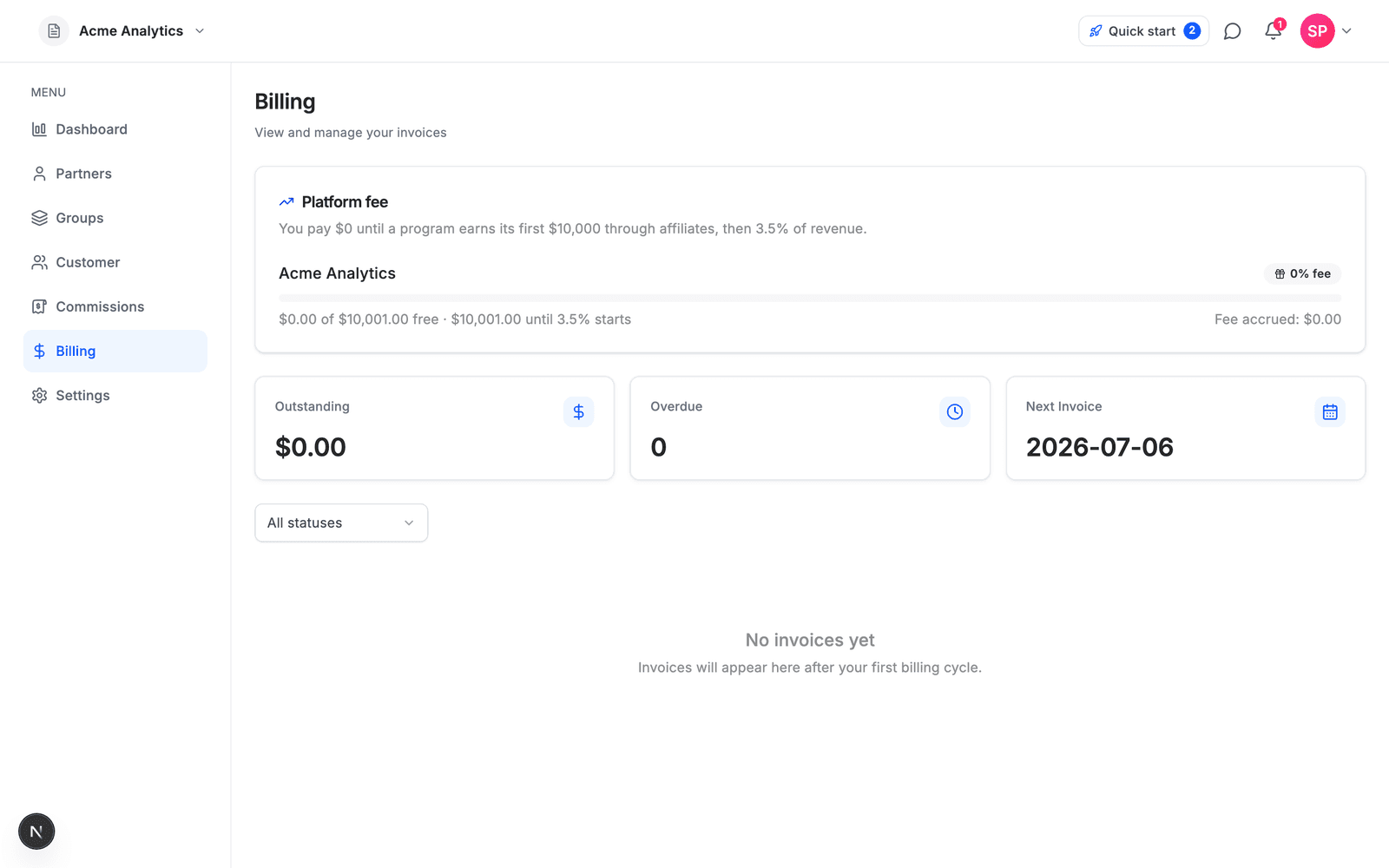
The platform fee follows the same principle: $0 until your program earns its first $10,000 through affiliates, then 3.5% of affiliate-driven revenue. You can see the fee accruing live on the Billing page.
At a high level:
- A sale is attributed.
- A commission is created.
- The commission waits out the program's hold period. You can approve, reject, or extend the hold on it from the Commissions page.
- When approved, the commission is added to the partner's balance. It becomes withdrawable once you pay the invoice that covers it.
- The partner requests a withdrawal; Affitor approves it and sends the transfer through Wise.
You do not need to manage individual partner transfers yourself.
Payout Methods
Affitor pays partners through Wise. A partner can be paid to:
| Method | Notes |
|---|---|
| Wise | The partner's Wise account email |
| Bank transfer | ACH in the US, BIC/SWIFT elsewhere, in the partner's legal name |
Before a first withdrawal, each partner adds a legal name, a payout method and a tax form (W-8BEN, W-8BEN-E or W-9) in their own account. You do not collect bank details or tax forms, and you never see a partner's tax form. The minimum withdrawal is $20.
Payout Status States
| State | Meaning |
|---|---|
| Pending | Withdrawal requested, awaiting approval |
| Approved | Approved and ready to send (partners see this as Processing) |
| Completed | Payout sent |
Your Role as Advertiser
| Do | Don’t |
|---|---|
| Review transactions and commissions where needed | Manage individual partner bank transfers |
| Configure commission and hold settings | Build a separate payout ops layer for each partner |
| Monitor affiliate cost and performance | Send partner payouts yourself |
Verify it worked
- Test-mode sales create no commission. The synthetic verification chain (see Testing your integration) checks attribution end to end, but its test commission does not appear under Commissions. A live sale's commission starts in Pending and moves to Approved when its hold period ends
- Billing shows the platform-fee card ($0 until your first $10,000 through affiliates) and the Next invoice date
- Commissions stuck in Pending usually mean the hold period has not elapsed — the per-program default is in your program settings
Refunds
A refund before the commission is approved removes it before it reaches the partner. After approval, the amount is taken back from the partner's balance. If the commission was already collected, the partner's balance can go negative and you get a notification: reconciling with the partner is a manual step. Platform fees already billed are not refunded. See Commission approval & cash flow.